Tampilkan postingan dengan label Android. Tampilkan semua postingan

Review + Guide: Convert Video Files to InnoTab 3/InnoTab 2 for Kids

Posted by Unknown Senin, 17 Februari 2014 0 komentar
This article will give you a brief review about VTech InnoTab 2 and 3, then provide a detailed guide on how to convert videos and movies to InnoTab 3 and InnoTab 2.
 
Part 1: InnoTab 3 and InnoTab 2 Review
InnoTab 3 and InnoTab 2 Review
InnoTab 3:
VTech have announced the InnoTab 3, a new model for 2013. Last year’s InnoTab 2 model is still a viable choice this year too and there are various bundles available with this tablet. Which tablet should you choose? Look at the below comparion:

The InnoTab 3 is a smaller, lighter kids tablet at an affordable price. The InnoTab 2 and 2S are quite chunky tablets, the InnoTable 3 has reduced the screen size from 5” to 4.3” and scaled down the casing (it’s still tough) this makes it a more portable option.

The InnoTab 3 also has an updated camera at 2MP (vs 1.3MP in order models) this is an important detail. This feature with the smaller size makes the InnoTab 3 a useful kid camera in addition to other features. It also has a added a D-pad controller-physical arrow key buttons- these do make navigation and game play more efficient for some kinds of game.

InnoTab 2:
The InnoTab 2 was last years upgraded model with a faster processor. It has a 5” screen so some will prefer it over the smaller screen of the newer InnoTab 3.

Now that the newer models are available the other main advantage of this model will be if you are price conscious and can find the InnoTab 2 discounted, as part of good value bundle, or even used. It will work with the new titles coming out for the platform.

Summary:

There’s not a huge amount between these tablets and they all offer the same basic experience to kids, with minor differences. If you bought an InnoTab 3/2 for your kids, do they can’t wait to play videos and movies on it? Follow the steps below to convert videos and movies to InnoTab 3/InnoTab 2 for kids.

Required software:
 
This app offers an easy way to transcode virtually all video and audio types, camcorder HD footages and TiVo recordings to desired video/audio format for portable devices.

How to convert videos and movies to InnoTab 3/InnoTab 2 friendly format?

Step 1. Insert the program to your computer and import the videos and movies to the app.

InnoTab Video Converter

Step 2. Click on the pull down menu of “Format” to choose “Common Video” > “H.264 Video (*.mp4)” as the compatible format for the tablet.

Convert Videos to InnoTab MP4

Tip:
If you want to customize the output size and quality, click the “Settings” icon to adjust video size, bitrate, audio channel, etc. Just remember the higher bitrate you set, the bigger output file size you will get.

Step 3. Hit the “Convert” button to start converting videos and movies to InnoTab 3/2. Wait for a while and when the conversion is over, you can find the output video in the “Output folder”.

Copy the converted files to your InnoTab for your kids

Connect the InnoTab to your PC using the USB cable and turn it on. If you have the VTech Learning Lodge Navigator software installed, it may start up automatically, but you will not use that to copy the file, so close it.

The InnoTab will show up as a Removable Disk as follows:


Navigate the folder structure on the InnoTab, and find the MOVIE folder within a folder called LLN. Copy all of your converted movie files into this folder.

Once the file copy process is complete, turn off the InnoTab and disconnect it from your computer.

Additional tips:
  1. For people who is looking for a powerful all-in-one converter to convert Blu-ray/DVD/ISO/IFO files as well as videos. Pavtube Video Converter Ultimate will be the best choice.
  2. Special offers for bundle package: ByteCopy($42) + Video Converter($35) = Only $60, Save $17

Related posts:
 

Baca Selengkapnya ....

Easy way to view Blu-ray Movies on HTC One Max, HTC One 2 (M8)

Posted by Unknown 0 komentar
The guide introduces how to put and play Blu-ray movies on HTC One Max and HTC One 2 (M8).

The HTC One Max was the Taiwannese Company’s first foray into the phablet category. It is a 5.9-inch colossus among regular smartphone with full HD (1920*1080) resolution. While the device was launched, new leaks indicate that HTC may already be at work on its next large-display bearing smartphone. The handset, which is slated to be unveiled in the first quarter of 2014, comes with the name HTC One 2 (M8). It suggests that the device coming with either a 5-inch or a 5.2-inch display, making it slightly smaller than the One Max. It will carry the newest Android 4.4 KitKat system and it also will have 2GB RAM and 16GB storage capacity. 

Without doubt, such phones are currently the best devices for us to watch the new released Blu-ray movies like Endless Love, Winter’s Tale, About Last Night, The Returned, Adult World, etc. while moving around. Its Full HD screen produces video image in an unbelievable crisp level and its top-notch processor delivers ultra-fast speed while loading HD Blu-ray movies. 
View Blu-ray Movies on HTC One Max, HTC One 2 (M8)

Having said that, it is still impossible to watch Blu-ray movies on HTC One Max or HTC One 2 (M8). You know, nearly all smartphones including HTC One Max and the releasing HTC One 2 (M8) cannot read Blu-ray format directly and there is even no Blu-ray drive in its design. So, if anyone hoping to play Blu-ray movies on HTC One Max or HTC One 2 (M8), resorting to a highly acclaimed tool called Pavtube Blu-ray Ripper is quite essential. Such app will help you decrypt/rip BD/DVD disc movies to any video/audio format for Android phones, including HTC, Nexus, SamSung and more. Here follow me to know how to do the Blu-ray to HTC One Max, HTC One 2 (M8) conversion. Mac users, you could turn to Pavtube Blu-ray Ripper for Mac.

Read more: Top 5 Blu-ray Rippers Review - Choose the best one for you

Full guide on how to rip and transfer Blu-ray to HTC One Max, HTC One 2 (M8)

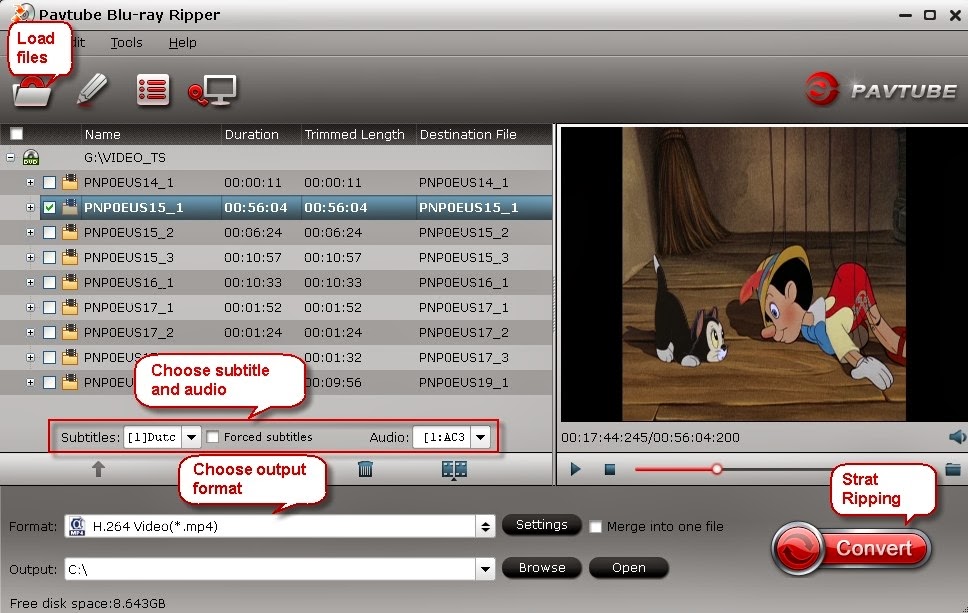
Step 1: Run Pavtube Blu-ray Ripper as the wonderful Blu-ray to HTC devices Converter here, click “Load file” to load your favorite Blu-ray disc files.

Step 2: Select subtitles and audio track language you like from the “Subtitle” and “Audio” drop-down list. For example, you can choose “French” subtitle for conversion if you need.

Step 3: Choose HTC One Max, HTC One 2 (M8) playback formats by clicking “Format > HD Video > H.264 HD Video (*.mp4)” recommended. Or, you can select other HTC One Max, HTC One 2 (M8) workable video formats, like MP4, WMV.

blu-ray ripper for htc devices

Step 4: Customize output settings for HTC One Max, HTC One 2 (M8) by clicking the “Settings” button. Here the video resolution as 1920*1080 by default is to fit the Android smartphone’s display for full video playback.


Step 5: Convert Blu-ray to HTC One Max, HTC One 2 (M8) .mp4 by clicking the Convert icon. Within a short time, you will get the converted movie files.

Step 6: Transfer the ripped Blu-ray movies to HTC One Max, HTC One 2 (M8) through USB cable.

Tip:
If you just need the main movie in the disc, you could “directly copy” the Blu-ray movies. According to my own experience, this could save the conversion time and the storage space for your phone.

More Articles:
  

Baca Selengkapnya ....

How do I transfer Blu-ray movie to VTech InnoTab 3/InnoTab 2 for kids?

Posted by Unknown Jumat, 24 Januari 2014 0 komentar
This guide explains how you can convert Blu-ray movies for your VTech InnoTab 3/InnoTab 2, so that your kids can watch movie on InnoTab 3/2, without having to purchase them again from a digital movie store. 
 
Nowadays, with the ability to purchase movies online, and watch it in a matter of seconds, more and more people prefer to digital content. But if we look at digital content, we will find each brand and device category has their own movie store. iTunes only works with Apple, Google Play works only with Android, Samsung MediaHub only works with Samsung devices, etc.

None of these stores take the content you already have into account, so if you want to play these movies on your VTech InnoTab 3/2, you will need to purchase it twice, and what makes things even worse is that purchases from one don’t mix with those from another.
 
Play Blu-ray on VTech InnoTab 3
These disadvantages make physical form stand out. Have you happened to have some Blu-ray disc and want to play on your VTech InnoTab 3/2? You can use a Blu-ray to VTech InnoTab Ripper to convert your Blu-ray movies to a format that will work perfectly on your VTech InnoTab 3/2, and if you do upgrade later-on, you can either use the same file, or convert the disk again for your other devices.

Requirements:

Of course your VTech InnoTab 3/2. While you don’t need it for the conversion process, but you need it to be able to put the movie onto it.

The connection cable for your VTech InnoTab 3/2.

An sd memorycard that works with your VTech InnoTab 3/2. 

A computer with either Windows OS or Mac OS as Pavtube Blu-ray Ripper is available for Windows XP/2003/Vista/Window 7/Windows 8/Windows 8.1, while Pavtube Blu-ray Ripper for Mac supports Mac OS X 10.9 Mavericks, 10.8 Mountain Lion, 10.7 Lion, Snow Leopard 10.6, Leopard 10.5

There is a large variety of different tools available for this. But for this guide I am using Pavtube Blu-ray Ripper, one of the most popular conversion application for phones and tablets due to its ease of use, the support provided when needed, and of course the very affordable price.

You can purchase Pavtube Blu-ray Rippper 30% off for New New Year Promotion, or download the free trial version (The trial version has Pavtube watermark on the output video.)

A DVD drive for you to convert DVDs while Blu-ray drive for converting Blu-rays for your VTech InnoTab 3/InnoTab 2

Step-by-step Guide:

This guide will take Windows OS as a example, if you are a Mac user, just choose the right version and the process is almost same.

Step 1: Download and install Pavtube Blu-ray Ripper on your computer.

Step 2: Load the Blu-ray movies to the program.

blu-ray to VTech InnoTab converter 

Step 3: Choose the output format. Click “Common Video” > “ H.264 Video (*.mp4)” as the output format.
 
rip blu-ray to VTech InnoTab 3
 
Step 4: Click the “Convert” button to start the conversion.

Step 5: Connect your VTech InnoTab 3/InnoTab 2 to your computer and copy the file over to the MOVIE folder located in the LLN folder on your VTech InnoTab 3/InnoTab 2’s memeorycard.

Once completed, just open the build-in video player app on your VTech InnoTab 3/InnoTab 2, and tap the movie to play it.

What happen during the conversion:

The actual movie conversion process takes some time. Many people don’t realize that converting a Blu-ray to play on the VTech InnoTab 3/InnoTab 2 is a bit more involved than just copying over the movie from the Blu-ray to the tablet. Conversion tools such as Pavtube Blu-ray Ripper actually have to do a lot more than that:

Disc Transfer. You can not just stick Blu-ray in your VTech InnoTab 3/InnoTab 2 as it don’t have a Blu-ray drive, even though you connect a Blu-ray drive with some cables and adapters to your tablet, there are no Blu-ray player apps available, so it will not work anyway. So, a conversion tool such as Pavtube Blu-ray Ripper plays the role of reading your Blu-ray and storing it on your computer in a video file.

Format Change. The VTech InnoTab 3/InnoTab 2 do not support the format like AVI and MKV, so in order for VTech InnoTab 3/InnoTab 2 to play your movies, the video files needed to be optimized. This is where the actual conversion part comes in. Pavtube Blu-ray Ripper reads your Blu-ray movies and then transforms it into a format that is optimized for VTech InnoTab 3/InnoTab 2 so that it will play your video without any issues.

Compression. It is usually that a movies on Blu-ray takes up 5-9GB of space. When you copy a movie over to your VTech InnoTab 3/InnoTab 2 of that size, you can only store a few movies, and there is no room left. Pavtube Blu-ray Ripper can compress movies to a much smaller file size enabling you to store much more movies on it.

Screen size adjustment. The conversion process adjust size of your movies to make it fit properly on the VTech InnoTab 3/InnoTab 2 screen.

Related Articles:
 

Baca Selengkapnya ....

Watch Rental Blu-ray movie with multi-tracks on Tablet/Phone without time limitation

Posted by Unknown Jumat, 10 Januari 2014 0 komentar
Do you have any rental Blu-ray movies in hand to be returned but you still have not watched yet? Do you want to watch these rental Blu-ray movies to your tablet or phone without time limitation? Read the article below can solve your problem easily. 

Nowadays, there is a growing number of people prefer to watching the latest Blu-ray movies through renting instead of purchasing. Just add the Blu-ray titles you want to watch to your rental list and they will be dispatched to you when available within your monthly allocation. The convenience for people to sit back and start to enjoy the latest and greatest movies without much pay makes rental Blu-ray movies popular. However, the only disadvantage of rented movies is they have rental periods that you have to complete your watching hurrily:
“I have a Blu-ray rental plan with Netflix. Recently I rented Hunger Games and was planning to watch it for a good enjoyment. But I was very busy and had no time to watch it. Return date is coming soon. 
First question, does anyone know a way to make it possible to watch the blu-ray movie on my tablet or phone? 
I also want to keep the multi-tracks of the movies.Comments?Thanks.”
Have you meet the same problem and have the same demands with the above customer? If you got some rental Blu-ray movies, you may want to stream them to your tablets/phones for watching anywhere and anytime and no deadline should be worried about. Here this post is mainly talking about how to put and play rental blu-ray movies on tablets/phones with multi-tracks.

Required Software:
 
Good news: To celebrate Near Year, get two products with less pay!
The Reason why we choose Pavtube ByteCopy? 

Backup BD/DVD to MKV without quality loss and keep multiple audio tracks and multiple subtitles.

Preserve the chapter structure in a converted movie title.

Edit movie by trimming, cropping, merging, etc and support adding *.srt and *.ass subtitles to BD/DVD movies.


Step by step guide to convert Rental Blu-ray to Tablet/Phone support format

PS: This application can work on Windows XP/2003/Vista/Windows 7/Windows 8 or Mac OS X 10.5 or 10.5 above (including Mac OS X Leopard, Snow Leopard, Mac OS X Mountain Lion) with 1G Hz or above Intel processor.

Step 1: Install the Rental Blu-ray movies to Tablet/Phone converter, then load your rental blu-ray movies to the program.

multi-track blu-ray ripper

Step 2: If you want to watch your rental blu-ray movies with multi-tracks, click the “Format” bar and choose the “Multi-track MP4(*.mp4)” format under “Multi-track Video” option which is designed for keeping multiple audio tracks.


Step 3:  Click on "Settings" to modify video codec, resolution, frame rate, sample rate etc. Of course, different settings will have different results. And you should know, the higher video quality with bigger video size, please pay attention to your storage. You can change these settings according to your own devices.

Step 4: Start ripping rental Blu-ray movies to Tablet/phone by clicking on the “Convert” button.

Once the conversion completed, transfer the result MP4 video file to your tablet/phone where you want to enjoy it.

Related articles:
  

Baca Selengkapnya ....

Stream Blu-ray/DVD collections to Portable Devices and HDTV via Home Network

Posted by Unknown Senin, 06 Januari 2014 0 komentar
This guide introduces how to backup Blu-ray/DVD disc, folder, IFO/ISO to your locate network, so that you can stream them to portable devices and TV for playback at any time.
 
If you are any thoughts of home entertainment, you should not miss the idea of streaming your Blu-ray and DVD collections to portable devices and HDTV via home network. It's a good way to share movies with family members without the risk of scratching discs; everyone in your family can create and access the shared movies; isn't it fantastic?

If you already have the home network set up, then the most important thing is to backup Blu-ray/DVD to server in a most common format which could be accepted by most of your devices. After many trials, I prefer to save them into MP4 format as it's widely supported by my iPhone, iPad, Android tablet and Samsung Smart TV.

To backup Blu-ray/DVD into MP4 format with best quality, I recommend Pavtube Video Converter Ultimate as it's capable of ripping/converting just about every title that I own; it's easy of use and choices for decode/encode to all popular formats.

Review: 2014 Top 5 Video Converter Ultimate For HD Media Player, TV & Portable Device

Note: its Mac version is renamed as iMedia Converter for Mac.

Good News! You can get 20% off discount on 2013 Christmas & 2014 New Year Specials or download a free trial before purchase.
 
How to convert Blu-ray/DVD to MP4 on home network or stream to portable device/TV for playback? 
 
Step 1. Launch Pavtube Video Converter Ultimate; import disc.

Inset your DVD to computer; if you want to rip Blu-rays, use an external drive to connect it to your computer. Then hit "load disc" to import the discs. You can also drag and drop Blu-ray/DVD folder, ISO/IFO files to it directly.

Note that you shall keep Internet connected during this period.


Step 2. Choose format.

Hit "Format" drop-down list and choose "HD Video> H.264 HD Video(*.mp4)" as the most widely used format for playback on smartphones, tablets and HDTV.


Step 3. Adjust output settings (Optional)

You can click "Settings" (besides "Format") to change target video size, bitrate, frame rate and other specs. Change the size to "Original" to get full size picture that can be playback on TV clearly. And the higher bitrate you choose, the better video quality will be.

Step 4. Start the Blu-ray to MP4 conversion.

Back to the main interface and hit the "Convert" to start converting Blu-ray&DVD to HD MP4 on your PC/Mac; this converter will start all the tasks in batch. Wait for a while till the conversion completed; click "Open output folder" to quick locate the converted files. Now upload the movies to your NAS.

Related articles:
 

Baca Selengkapnya ....

MKV Player for Android - Play MKV movie on Android Tablet/Phone

Posted by Unknown 0 komentar
In order to solve the problem of playing MKV on Android phones or tablets, this article gives you two feasible methods to make you enjoy your MKV videos on Android devices.
"I just got an android phone that is Samsung Galaxy while when I tried to transfer and play MKV files on my phone; I find my android phone can not support it. So, is there any solution to solve it?"
If you got an Android phone such as HTC android phones, Motorala smartphone, Samsung smartphones, Sony Ericsson, LG mobile phone, I'm sure you will dream of watching Matroska Video File/.mkv movies with it. Then what's the best way to play MKV videos files on an Android device smoothly? Here you'll find it out! Just follow this article to watch and view MKV movies on any popular Android phones and tablets effectively.

See Also: Supported Video Formats for Android

Method 1: Install Media Player for Android

The first way that most people first consider is to install a video player for Android that can play AVI, WMV, MPG, MOV, MKV files. If you search online, you will find there are many free MKV players for Android in the market and most of them are free. Popular Android MKV players include Mobo Player, MX Video Player and Rock Player. With a smart player installed on your Android device, you can play MKV movies without conversion on your Android device.


Note that though there are so many MKV players for Android, many of them can't play HD 720p or 1080p MKV videos in high quality on your device. What's more, some apps will slow download your device. Does this mean that you can't view your MKV videos on your Android devices? Never mind, you have another choice.

Method 2: Convert MKV to Abdroid supported format

The best way to play MKV movies on Android is to change MKV to Android compatible formats like MP4. To achieve it, you can use MKV to Android Converter to convert MKV format to Android friendly MP4 and then transfer to your Android device. It also supports Mac version: MKV to Android Converter for Mac.

Join Pavtube Christmas & New Year Specials now!

Insatll and launch the program. The interface of the software is as below. Generally, the conversion process can be completed in 3 simple steps. 1. Click "Add File" icon and select videos from your hard drive to load. 2. Click the format bar and choose MP4 as the output video format. 3. Click "Convert" button to start converting MKV videos for playback on any Android device.


After finishing this, the only thing you need to do is just waiting for the conversion to be done. Then get the converted Android playable videos and transfer them to your devices for play smoothly. 

Have you learned the methods of playing MKV movies with dts on Android OS-based devices? So easy, right? Just enjoy it!

Some articles you may interested:
 

Baca Selengkapnya ....

M4V Player for Android - Play M4V videos on Android OS-based tablet

Posted by Unknown Senin, 30 Desember 2013 0 komentar
This article gives you two ways to play M4V on Android OS-based tablet with the best visual and audio effect: M4V Player for Android and M4V Converter for Android.

Nowadays, with the development of android, more and more people are using Android phone or tablet. But these devices aren't compatible with many format videos such as M4V. M4V is a format that created by Apple and protected by DRM. Due to the protection, this file format is not compatible with Android system. When I surf on the Internet, I have found that many people asked many problems about playing M4V files; here is one of the questions lifted on Android Forums:

"I am searching for a video player app that can play m4v files. I am an apple product fan and use an iPhone for this currently and have wanted to switch over to android. But as far as I can tell there are no video player apps that do this. Dose anyone know of an app that can do this?"

Many people reply to the thread, and according to these replies, I sort out two ways for you to solve the problem.

Read more: Supported Video Formats for Android – Non Official Document

The First Way: M4V Player for Android 


One person recommended the MX Player. He said that the MX video player can play everything. I Google it and find MX Video Player is a free app for Android device that allows you to play videos on your phone.

This app enables you to play most video files and subtitle files with multi-core decoding capability. MX Video Player is the first Android video player performs multi-core decoding. It supports multiple movie files like 3GP, Divx, F4V, MP4, MPEG, MOV, M4V(have removed DRM protection) and VOB.

The Second Way: M4V Converter for Android
  
The second way is convert M4V to Android tablet supported format. If you want to play M4V format videos on Android tablets and avoid some unnecessary troubles, the M4V to Android tablet converter can aim your goal. It can meet all your needs with its powerful function; it can convert all videos like AVI, MKV, MP4, WMV, MOV, M4V. Let's begin with the detailed introduction about converting M4V files to Android OS-based tablet supported format.

See also: 2013 Top 5 Best Android Video Converter Review

First, free download Pavtube M4V to Android tablet converter and install in your computer. It only take up a little space in your computer.

Get it now to enjoy Christmas Specials

Then, add the M4V files or videos in the M4V to android converter. Do this by clicking the "Add File" icon.


The following, this is an important step that you need choose a right output format. It is the key to solve playback problem, you can choose MP4, it is the best compatible format for Android.


In the "Edit" you can edit your videos by trimming, cropping, adding Watermarket and subtitle.


The last step is clicking the convert button to start this conversion. Then a little time later, you can copy to Android devices for playback.

Note: The precondition of these two ways of playing M4V video is that you've removed the DRM protection of iTunes videos. If you want to convert the M4V videos protected by DRM, ChewTune (Review) is such a DRM removal tool legally strips DRM copy protection from Digital Copy, WMV, and M4V.

See also: Top 5 Best DRM Removal Programs Review for Android

If you are interested in this M4V to Android tablet convert, you can have a try.

Related Posts:
  

Baca Selengkapnya ....

Download and Sync Music, Photo and Video Files to Kindle Fire HDX with Three Ways

Posted by Unknown Jumat, 20 Desember 2013 0 komentar
Have no idea about the new Kindle Fire HDX Media File Transfer? Here, you will find three ways to download & transfer media files (music, photos and videos) to Kindle Fire HDX 7/8.9 for using. Plus, you will get some small tips when synchronizing videos/movies to your new Amazon Tablets.
 
Kindle Fire HDX. Generation 3 tablets are here. New Kindle Fires with Collections, Downloads of Prime Instant Video, Kindle Support Co-pilot access on your tablet 24/7. 34% lighter, much faster. Scroll lyrics to songs, identify and jump to songs when watching enabled tv shows or movies. Switch between multiple apps and books. Enterprise features + new accessibility capabilities. Control TV with the tablet and sync video and X-ray features + much more. In this article, we will provide the info about "How to get music, photos and videos onto the Kindle Fire HDX". You can take this informative posting about transferring media files onto the Kindle Fire HDX 7/8.9 for reference.
 
(Also see Amazon's help section to get more "Kindle Fire HDX Online Help".)

Method 1: USB Transfer- Transfer Content from a Computer to Your Kindle Fire HDX

To transfer Kindle content from your computer to your Kindle Fire HDX, use the micro-USB cable that was included with your device.


Note:

EPUB eBooks and Mobipocket files with Digital Rights Management (DRM) can't be transferred to your Kindle Fire.
Personal videos transferred to your Kindle Fire will appear in the Photos content library.
Apps from the Amazon Appstore for Android and movies and TV shows from Amazon Instant Video can't be downloaded from the Manage Your Kindle page to your computer.

From your computer, locate the content you want to transfer from your computer to your Kindle Fire.

Tip: You can use Manage Your Kindle to deliver Kindle books, magazines, and newspapers to your computer. Visit Manage Your Kindle and locate your Kindle content. From the Actions drop-down, select Download&Transfer via USB. From the drop-down, select your Kindle Fire, and then clickDownload to download the content to a folder on your computer.

Connect your Kindle Fire to your computer with the micro-USB cable. If you've set a lock screen password on your Kindle Fire, you may need to unlock your device before it can be opened on your computer.

Windows: Your Kindle Fire HDX will appear in the Computer or My Computer folder.


Mac: Your Kindle Fire will appear on the desktop.


Important: If you own a Mac computer with OSX 10.5 or above or a Windows XP computer, your Kindle Fire HDX will not be detected by your computer until you download new software for your computer.

To download the software, go to http://www.kindle.com/support/downloads, and then select your country from the list.

Open the Kindle Fire folder (titled Kindle) on your computer, and then open the Internal storage folder.

Locate the downloaded file on your computer, and then drag and drop the compatible file you want to transfer into the applicable folder:
  • Audiobooks: AA, AAXBooks: AZW (.azw3), MOBI (non-DRM), KF8
  • Documents: TXT, PDF, PRC, DOC, DOCX
  • Music: MP3, non-DRM AAC (.m4a), MIDI, PCM/WAVE, OGG, WAV
  • Pictures: JPEG, GIF, PNG, BMP
  • Movies: MP4, 3GP, VP8 (.webm)
  • Disconnect your Kindle Fire from your computer.
 
From your Kindle Fire, tap a content library (for example, Books) in the top navigation, and then tap On Device to view your Kindle content.

Method 2: Wireless cloud service - Downloading Content from the Cloud

After you purchase Kindle content, it is saved to the Cloud. When you connect to a wireless network, you can download items from the Cloud to your Kindle Fire.

From Home, tap a Kindle content library (for example, Books) in the top navigation bar.
Tap the item to download it to your device. Items that have been downloaded to your Kindle Fire display a check mark in the lower right corner of the cover image. Items that are stored in theCloud do not display a check mark.


Tap the item to open it.

Having trouble?

Remove Content from Your Kindle Fire HDX

If you need additional device storage space, or you have content that you no longer use, you can remove items from your Kindle Fire.

Swipe down from the top of the screen to open Quick Settings, and then tap Settings.
Tap Device, and then tap Storage.
Tap any of the content categories to see the file names and sizes..
Tap the checkbox of any items you want to remove, and then tap Remove.

Tip: To permanently remove apps or games from the Cloud, go to the Apps or Games library on your device, tapCloud, and then press and hold the item you want to remove. Tap Delete from Cloud.

If you'd like to permanently remove a book, magazine, or newspaper from the Cloud, you can do so from Manage Your Kindle .

Method 3: Wireless network - Sync On Your Kindle Fire HDX

After you connect to a wireless network, you can sync your Kindle Fire HDX to receive content from the Amazon Cloud, synchronize book, audiobook, game, and video progress across devices, and download any app updates.

Swipe down from the top of the screen to open Quick Settings, and then tap Settings.
Tap Sync All Content.

Related Help Topics

Tips for synchronizing unsupported videos/movies to Kindle Fire HDX

1.  How to put copy-protected contents onto the Kindle Fire HDX Tablet? In fact, Movies purchased or downloaded from online (e.g. iTunes, BBC iPlayer, Amazon) are restricted to specific computers and devices only. Unfortunately the Android devices have not get a license to play DRM contents which means Kindle Fire HDX is not granted to play DRM-protected videos. To have the device play these DRM videos (iTunes movies, TV shows, Amzon Instant videos and Digital Copies), get yourself a DRM removal tool first (e.g. ChewTune). 

2. If you want to copy videos to Kindle Fire HDX in other formats like MKV, WMV, AVI, FLV, MTS, M2TS, MOV, MPEG, MPG, MOD, TiVo, VOB, etc, you will need reformat these video files first. You can try this professional Kindle Fire HDX Video Converter to batch convert videos in various formats up to 1080p to the Fire HDX playable format (e.g. MP4).

3. If you have the intention to transfer Blu-ray, DVD movies as well as your personal HD video files to Kindle Fire HDX, you'd better get the best all-in-one video convert tool Video Converter Ultimate to have fastest and most effective conversion. 
  

Baca Selengkapnya ....
Trik SEO Terbaru support Online Shop Baju Wanita - Original design by Bamz | Copyright of android kawaii.